Preparing the Network for ThinLinc Installation
Naturally, the network at the site where ThinLinc is to be installed needs to be prepared for the installation. This section aims to help in understanding the requirements of the network for a successful ThinLinc installation.
We will explain the most common setups, including a typical Novell site and a typical Microsoft site. Also, we will explain how a site with NAT can use a NAT/Split-DNS setup to access ThinLinc in an efficient way both from the inside network as well as from the Internet.
A Simple ThinLinc Setup
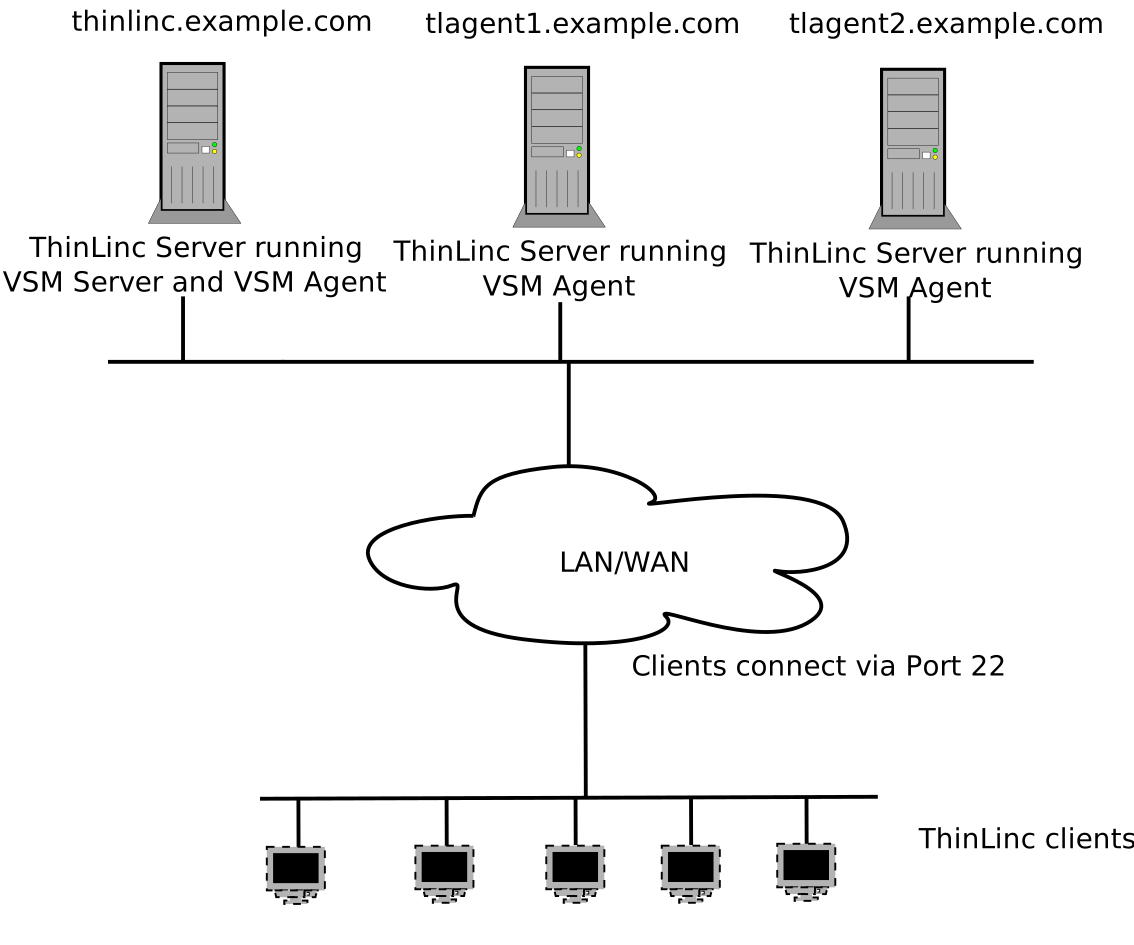
Fig. 2 A simple ThinLinc setup
In Fig. 2, a very simple ThinLinc setup is shown. In this setup, clients are configured to connect to thinlinc.example.com, DNS is configured with information about what IP addresses correspond to the hostnames thinlinc.example.com, tlagent1.example.com and tlagent2.example.com and no firewalls are in the path between the clients and the servers.
The number of VSM agents will range from 1 (on the same host as the VSM server) to a larger number, based on the number of users that are using the system. In this example, there are one host running both VSM server (the software controlling the whole ThinLinc cluster) and VSM agent, and two dedicated VSM agent hosts running only sessions.
Clients will communicate with the servers solely via SSH (by default port 22).
ThinLinc in a Novell Network
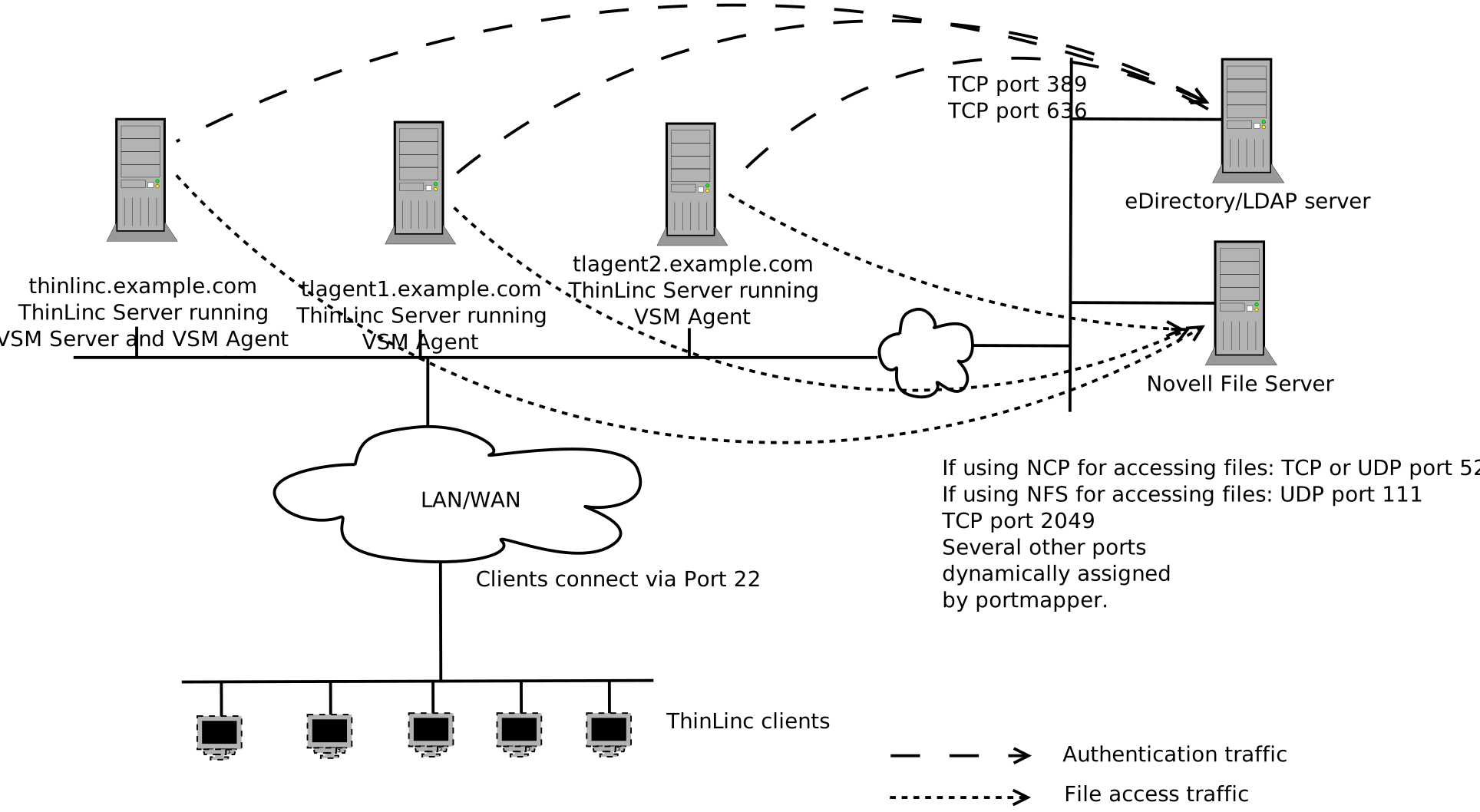
Fig. 3 ThinLinc in a Novell network
In Fig. 3, ThinLinc is installed in a Novell environment, and integration with Novell eDirectory and/or Novell Netware fileservers are in use.
The ThinLinc servers will need to communicate with the eDirectory servers on either port 389, if using unencrypted LDAP, or on port 636, if using encrypted LDAP (ldaps).
The ThinLinc servers will also need to communicate with the Novell Netware file servers. In the case where NCP is used to access the files, the ThinLinc servers needs to communicate with the Netware servers on TCP or UDP port 524. In the case where NFS is used to access files, UDP port 111, TCP and UDP port 2049 and a range of dynamically allocated UDP ports are used to communicate with the file servers. If there is a firewall between the ThinLinc servers and the Netware file servers, it needs to have support for understanding portmap requests, opening NFS UDP ports on demand, or there can be no restrictions for the traffic between the ThinLinc servers and the Netware file servers.
ThinLinc in a Windows Network
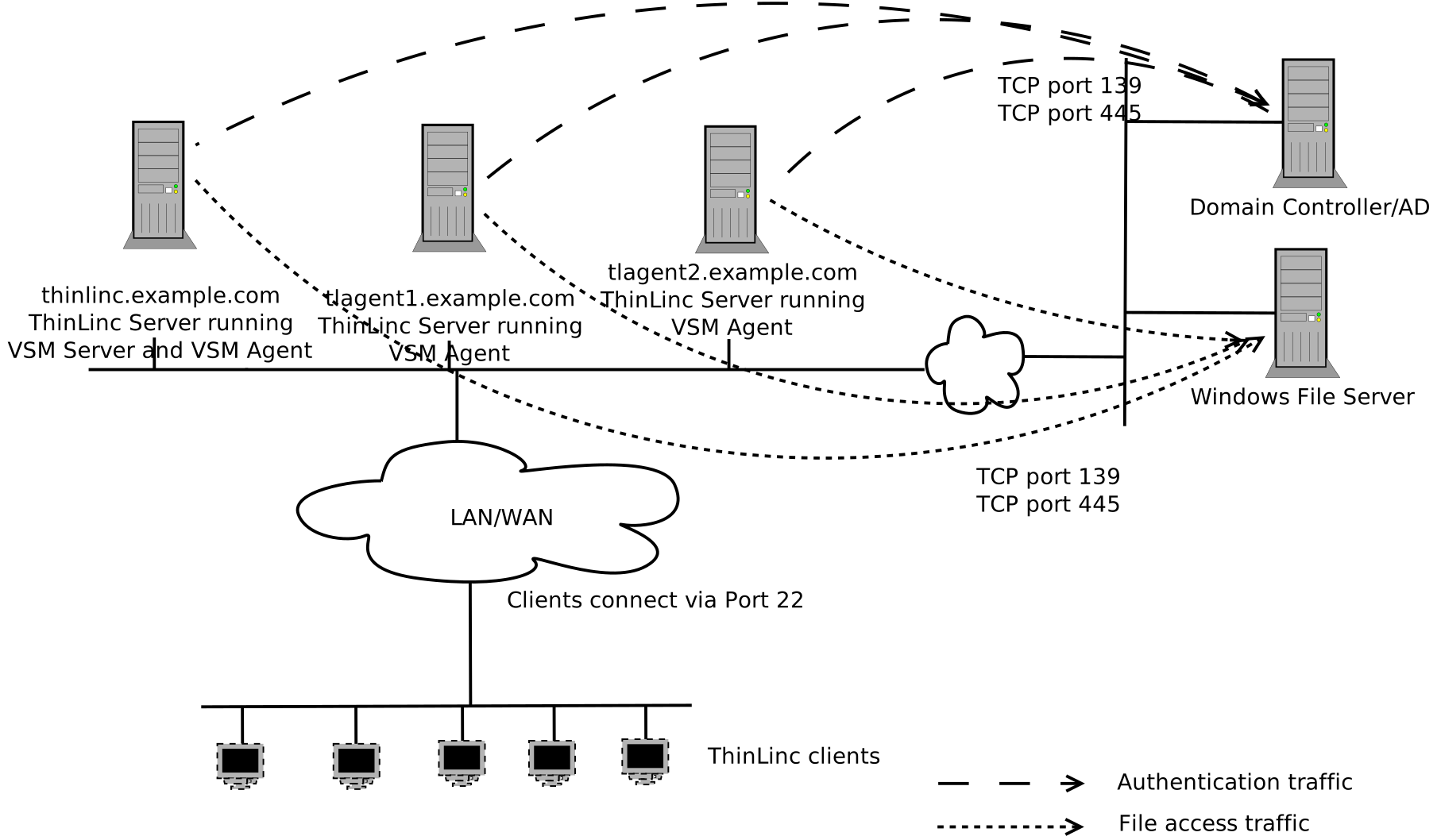
Fig. 4 ThinLinc in a Windows network
In Fig. 4, ThinLinc is installed in a Windows environment, and integration with Windows Domain Services and/or Windows Fileservers are in use.
The ThinLinc servers need to communicate with the Windows Domain Controller on TCP port 139.
The ThinLinc servers will need to communicate with the Windows file servers using TCP port 139 and/or TCP port 445.
ThinLinc in a NAT/Split-DNS Environment
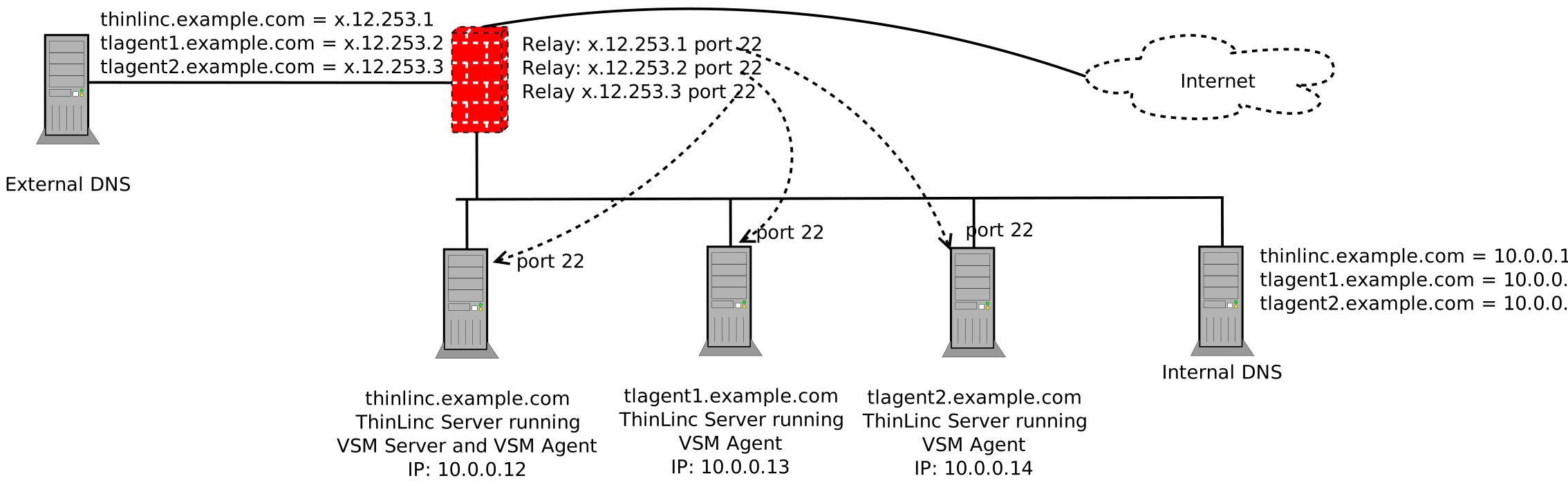
Fig. 5 ThinLinc in a NAT/Split-DNS environment
At many sites, the internal network is behind a firewall doing Network Address Translation (NAT). This means that the IP addresses on the internal network are allocated from so-called RFC 1918 space, i.e., they are within the range 10.0.0.0 - 10.255.255.255, 172.16.0.0 - 172.31.255.255 or 192.168.0.0 - 192.168.255.255.
As long as ThinLinc servers are only meant to be accessed from the internal network, this is no problem, and the situation will be like the one described in A Simple ThinLinc Setup. However, if the ThinLinc servers are meant to be accessed from the Internet as well, special arrangements need to be made.
Note
An alternative to using a split DNS configuration is to use a client
side translation configured by the HOST_ALIASES
parameter, but in most cases, a proper DNS setup is recommended. See
Client Configuration Parameters for more information.
Relays
First, relays must be configured in the firewall. One IP address reachable from the outside network per ThinLinc server needs to be available, and each should be equipped with a relay forwarding traffic from TCP port 22 on the outside to TCP port 22 on one specific ThinLinc server. In our example, as shown in Fig. 5, there is one relay listening to TCP port 22 on the externally reachable IP address x.12.253.1 forwarding traffic to the ThinLinc server on the internal network with IP address 10.0.0.12, one relay listening on TCP port 22 on the externally reachable IP address x.12.253.2 forwarding traffic to the ThinLinc server on the internal network with IP address 10.0.0.13, and so on.
DNS
After configuring the relays, DNS must be configured so DNS queries for the hostnames of the ThinLinc servers get different answers depending on the origin of the query. DNS queries originating from the internal network should be answered with the real IP addresses of the servers, and DNS queries originating from the outside network should be answered with the IP addresses on the firewall, where the relays are listening.
In our example, if a host on the internal network is asking for the IP address of the hostname thinlinc.example.com it should get the IP address 10.0.0.12 as answer. If a outside host is asking for the IP address of the same hostname it should instead get the IP address x.12.253.1 as answer.
When configured this way, a client connecting from the internal network will communicate directly with the ThinLinc servers, without the need to pass the firewall, while clients connecting from the outside will pass through the firewall and the relays to communicate with the ThinLinc servers. This will ensure optimal performance for clients from the internal network, at the same time lowering the load on the firewall.
Configuring the VSM Agents
Finally, after configuring relays and DNS, the VSM agents must be configured to respond with the correct hostname when asked by the VSM server what hostname the clients should connect to. The default behaviour is to respond with the IP address of the host, but that will not work in this case since clients connecting from the external network won’t have any route to for example 10.0.0.13. Instead, the VSM agents should be configured to respond with the hostnames that can be found in both the internal and the external DNS.
This is done by setting the parameter
/vsmagent/agent_hostname on each of the VSM agents in the
ThinLinc cluster. In our example, set
/vsmagent/agent_hostname to tlagent1.example.com on the
machine with IP address 10.0.0.13.
Using ThinLinc Web Access
If users are supposed to be able to connect using a web browser, using ThinLinc Web Access, they must be able to connect to port 300 on both the VSM server and on all VSM agents.
In the NAT/Split-DNS setup, relays must obviously be configured in the firewall for each ThinLinc server and the port 300.
Other Services Required by ThinLinc Servers
In order for ThinLinc to function properly together with the rest of the network, they will need to synchronize time with some internal or external time source. Linux machines use the Network Time Protocol (NTP), so if there is one or several NTP servers on the internal network, the ThinLinc servers will need to communicate with them. Otherwise, the ThinLinc servers should be configured to use some external time source, and should be allowed to communicate with it.