Using the ThinLinc Desktop Customizer
By using the ThinLinc Desktop Customizer, the system administrator can decide which applications should be available in the menu and/or on the desktop for specific users. Configuration is performed using a module in the ThinLinc Web Administration interface. Web administration interface describes the interface in general; this section describes the usage of the Desktop Customizer module.
Concepts
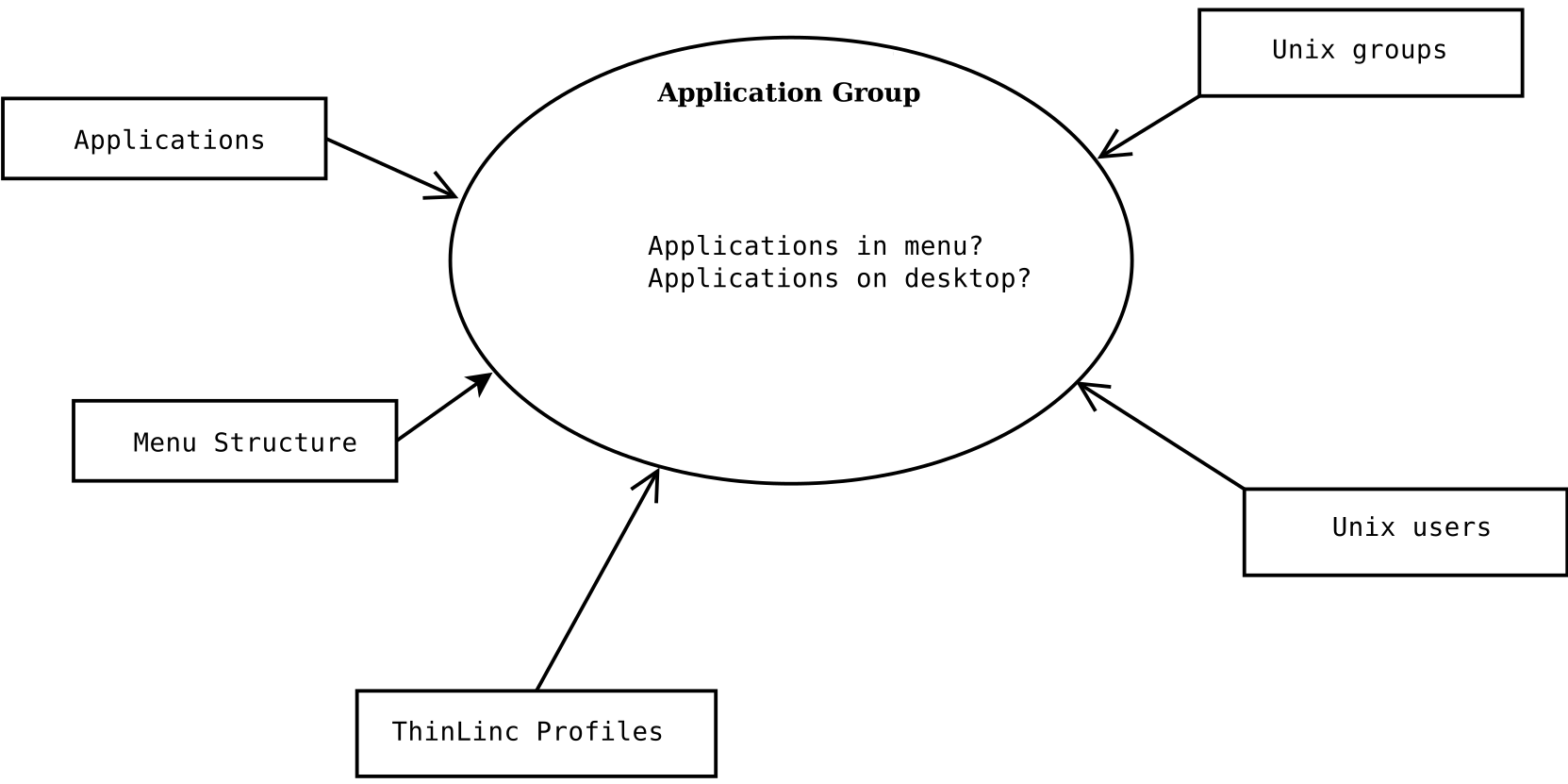
Fig. 43 ThinLinc Desktop Customizer concepts
The main concept in the ThinLinc Desktop Customizer is the application group. The application group defines menu structure, desktop icon placement, and which users the configuration should apply to.
Applications
The applications referenced by the application groups are found by
scanning the space-separated list of directories defined in the Hiveconf
parameter /utils/tl-desktop-customizer/xdg_data_dirs, for
files named *.desktop. These files are read according to the
Freedesktop.org Desktop Menu Specification.
In addition to the desktop files automatically found, it is also
possible to manually define applications. This is needed for example
when an application without a .desktop file has been installed,
or when an application has been installed in a non-standard location.
Application groups
Applications which have been automatically located, or manually defined, may then be added to an application group. An application group defines a set of applications which should be made available to users meeting certain criteria. These critera are discussed in more detail in section Defining application groups below.
Using the ThinLinc Desktop Customizer
The general usage of the TLDC involves one or several of the following steps:
Create an application
Create a folder in the menu structure
Bind one or several applications to a folder in the menu structure, using an application group
In the following sections, we will more thoroughly describe the different actions that may be needed.
Defining applications
The defining of applications is normally the first step in using the TLDC. Click on the Applications (manual) link in the TLDC to see all manually defined applications. Several example applications are included with ThinLinc at installation. By clicking on the text Applications defined by system, you can also see what applications are found automatically by scanning, as described in Applications.
If the application you want to add to a menu or to the desktop is not
found among Applications defined by system, you need to
define it manually. This is the case for applications installed without
adding a .desktop file in the correct location.
Defining applications manually is done by clicking on the button Add new application (located at the top of the list of applications). This brings up a pop-up where you can define the following properties for the new application:
- Default application name
This is the name of the application. It’s the name that is written next to the icon (if any), in the menu, and under the icon if the application is to be added to the desktop.
The default application name is used if there is no name defined for the language in use when the application is shown, or if the language is English.
- Application name (<language-code>)
This is the name of the application in the language with the RFC 1766 language code <language-code>. This name is shown if the locale is set to that language when the menu or desktop is shown.
The languages that should be configurable are set by editing the space-separated list in the parameter
/utils/tl-desktop-customizer/desktop_languages. The default value of this parameter issv, which means that the TLDC will allow you to set the default name and the name in Swedish.- Command
This specifies the command to run to start the application. Enter the path to the command followed by any arguments in the Command box. The input box follows Bash syntax rules.
Example:
/usr/bin/my_program --fullscreen --title "My title"- Path to icon file
The filename of the icon for the application. If the icon is available in one of the directories where your desktop environment looks for icons, just the filename without the extension can be given. Otherwise, the complete path must be specified.
- Enable startup feedback
Enable the switch to instruct the window manager to show a special icon while the command is starting. Note that not all applications support this functionality.
Press Save when done filling the fields. The application will now show up among the other manually defined applications.
Defining application groups
Enter the Application groups section of the desktop customizer. This will present you with a list of existing application groups and their settings.
Press the button Add new group (located at the top in the table of existing application groups) to create a new application group. This will open a rather large pop-up, where you can define the following properties:
- Name of the application group
This is the name of the application group. This is not displayed to the users, but only to the system administrator using the ThinLinc desktop customizer. Set to something that reflects the contents of the application group.
- Menu of application group
A dropdown box for the menu structure folder of the application group. Applications chosen in the boxes below will be added to the chosen menu folder.
- Applications added to menu
Add to the left box, labeled Selected, the applications that should appear in the menu folder selected above. This will only apply for users that are assigned this application group. The right box, labeled Available, lists applications, both manually defined and ones found installed on the system. If no applications are available, applications can be defined, as documented in Defining application groups.
- Applications added to desktop
Add to the left box, labeled Selected, the applications that should appear as icons on the desktop. This will only apply for users that are assigned this application group. Just as for applications added to the menu, only applications earlier defined, or automatically found, will show up as selectable, in the box labeled Available.
- Linux groups with this application group
This is where you map Linux groups to application groups. In order to activate the selected application group for multiple users, ensure they are all members of a particular Linux group, and write the name of this group in the right-hand box labeled Group name. Then click the left arrow to add the group to the box labeled Selected. Multiple groups may be added in this way. When logging in, the group membership of each user is inspected to determine which application groups to assign to the user.
Note
If the mapping between the numerical group id and the group name doesn’t work, the group is shown as
#<gid>. This might be because the group has been removed from the system, or because the operating system has problems in the connection to the directory service used.- Specific users with this application group
This parameter allows you to activate the application group for specific users, regardless of group membership. Enter the username in the box to the right, and click the left arror to add this user to the box labeled Selected.
Note
If the mapping between the numerical user id and the user name doesn’t work, the user is shown as
#<uid>. This might be because the user has been removed from the system, or because the operating system has problems in the connection to the directory service used.- ThinLinc profiles with this application group
This setting allows you to activate the application group when a certain ThinLinc profile is selected; see ThinLinc profiles for more information. While ThinLinc profiles are often associated with different Linux desktop environments, by using this setting you can have multiple profiles with the same desktop environment, but different menu configurations.
- Shell command activating this application group
This setting allows you to activate application groups based on the return value of an arbitrary command. If the command returns 0 (which is the standard return code for success for shell commands), the application group will be activated.
This can be used for example to activate application groups based on group membership by using the tl-memberof-group command. It can also be used to activate an application group for all users by running /bin/true as activation command.
The command is run via the shell in the current user’s environment when running tl-desktop-activate.sh. The environment variable TLDCGROUP is set to the application group currently under consideration for activation.
- Save
Don’t forget to press the Save button, or none of the changes will be written to the database.
Distribute configuration to all agent hosts
After doing changes to the desktop configuration, the new configuration
must be copied to all agent hosts. The files and directories to be
copied are /opt/thinlinc/etc/conf.d/tl-desktop-customizer.hconf
and all subdirectories of /opt/thinlinc/desktops.
Tip
Use the tl-rsync-all command as described in Commands on the ThinLinc server to copy the files.