Advanced
This section describes more avanced Web Access configuration options for customizing the OIDC experience or enabling mutliple providers.
Disabling password login
By default, Web Access displays both the traditional username/password
form and OIDC login buttons. For info on how to disable the password
form and enforce OIDC-only authentication, see
/webaccess/login/password. The resulting login page looks
similar to the following figure.
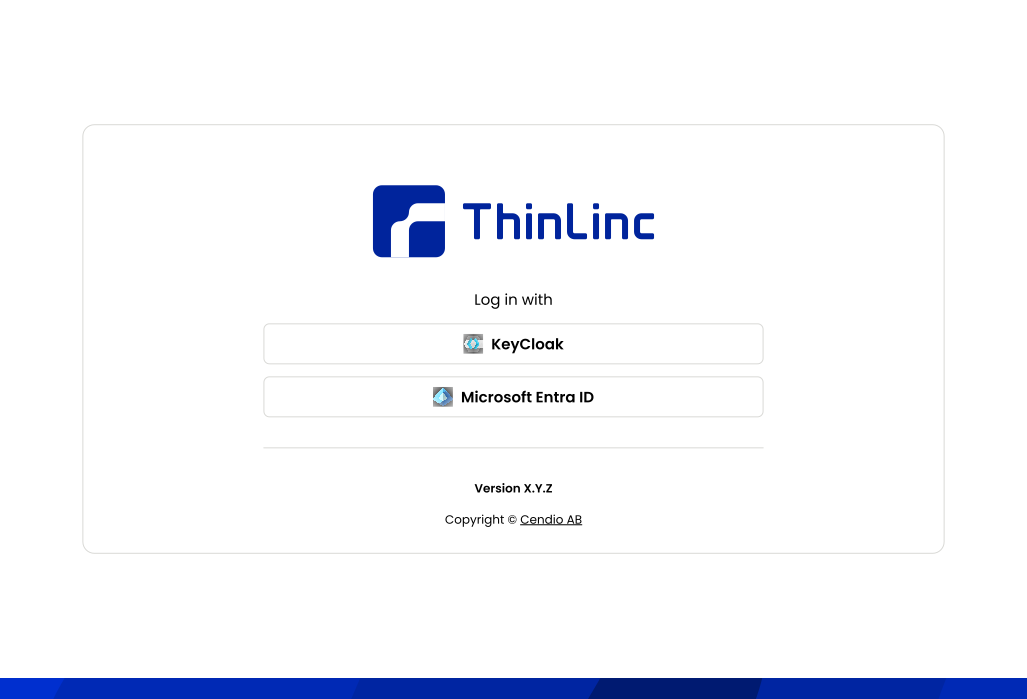
Fig. 3 ThinLinc Web Access with OIDC login
Customizing the login page
The OIDC login buttons can be customized with text and icons. Other parts of the login page can also be customized, as described in Custom branding. Together these options allow for a more personalized and recognizable page. The configuration can, for example, look like this:
button_text=Company authentication
icon_path=/opt/thinlinc/etc/tlwebaccess/company-icon.svg
The parameter /webaccess/oidc/<provider>/button_text
customizes the button label. The parameter
/webaccess/oidc/<provider>/icon_path specifies an icon image
(20x20 pixels recommended).
Multiple providers
Any number of OIDC providers can be configured to allow users to choose. Multiple providers can be enabled by adding separate configuration sections, as in the following example:
[/webaccess/oidc/microsoft]
username_claim=samaccountname
scope=profile
discovery_url=https://login.microsoftonline.com/<example-tenant-id>/v2.0/.well-known/openid-configuration
client_id=<microsoft-client-id>
client_secret_path=/opt/thinlinc/etc/tlwebaccess/microsoft_secret.txt

[/webaccess/oidc/keycloak]
username_claim=preferred_username
scope=profile
discovery_url=https://keycloak.example.com/.well-known/openid-configuration
client_id=<keycloak-client-id>
client_secret_path=/opt/thinlinc/etc/tlwebaccess/keycloak_secret.txt
Replace the values in the example with proper configuration for each
provider. The parameters username_claim, discovery_url, client_id,
and client_secret_path are always required. Users will see separate
login buttons for each configured provider.
Integrating into other platforms
The OIDC login can also be integrated into a different platform or website, allowing users to log in directly, without first visiting the Web Access login page. To do this, a direct link including the correct parameter should be added.
This link can be copied from the respective OIDC button on the Web Access login page. Alternatively, a HTML link can be created as follows:
<a href="https://tl.example.com:300/?oidc=<provider>">
   Log in to ThinLinc
</a>
In the URL, the <provider> must match the corresponding folder name
in /webaccess/oidc/<provider> in the configuration, for
example microsoft. Replace the address in the example with the URL
of the server where ThinLinc Web Access is running.
The parameter /webaccess/login_page can be used to allow
users to return to where they were before logging in.